Sunday, March 2, 2014

Creative Image Creation Roundup, Part 2: The One-Trick Ponies

Creative Image Ideas: Pho.to sample
Yes, that is Tom Cruise taking a selfie with a photo of me.
See how much fun image creation can be? 
In addition to the workhorses I talked about in my previous post (items #1-11), there are specialty programs that might be a better fit for your art project. If you don't need all the bells and whistles, or get distracted by too many options, check some of these out. 

For example, if you just want an inspiring quote about writing, there are a bevy of places to get that done. If you just want to slap a quote from your book on a beautiful photo (but don't have any beautiful photos), that's easy, too. I pointed out whether each site requires a login, since I'm biased towards the the ones that don't. I can't even remember my own phone number most days, let alone a billion usernames and passwords. 

Now go forth, experiment, and have fun!  

Use this site to make sharable quotes with pretty backgrounds. I've used this one a fair amount for work. It's great for reaching a younger audience because they have pics of celebrities you can shamelessly use to promote your own work. I've made Taylor Swift and One Direction graphics that are, if nothing else, eye-catching. Basically, you pick from a huge variety of background images, slap on your text, add a filter (if you want), and right click to save that puppy. All your images are saved to your username, but you have the option of keeping them private if you don't want them displayed in a public gallery. This is also a fantastic place to find the kind of background images that hipster edit memes make fun of. If you're into that sort of thing. 

Login required? Yes 

Image Creation Ideas: LivLuvCreate
Bonus! You can submit your OneDirection fanfic here, too.
(Please tell me you don't have OneDirection fanfic.) 

This is solely to help you kick ass at Pinterest. It helps you pin things other than pictures, which sounds weird, but can actually be helpful. You can pin quotes, stuff from Spotify, a Tweet, etc. For writers, the easiest thing to do is to make a quote, and grab a great line from your book. To do that, all you do is paste your quote into a blank box, add an author name, and apply the style you like best from their scrollbar. No muss, no fuss. When you're done, just hit "Pin." If you want to grab the image to use elsewhere than Pinterest, you have to copy it and paste it into another photo editor.

Login required? No

Image Creation Ideas: Pinstamatic
Pinstamatic deserves attention just for the beauty of their home page design.

When I typed this into Google, it asked me, "Did you mean pinworms?" No, Google, I didn't mean pinworms, and freakin' a, what the hell is a pinworm? Anyhoo. This is a quote-image-making site. You can upload an image of your own, or use one of their pre-supplied backgrounds. You choose your theme, click on the sample text, and update it with your own. Easy, breezy, beautiful, Cover Girl. 

Login required? No

Image Creation Ideas: Pinwords
Pinwords: simple yet effective. 

15. Quozio
This is another quote-making site. Just enter your quote, and add the author. Click "Go," and scroll through a bunch of pre-formatted backgrounds and font choices at the top of the window. You can't customize the font, size, or background, but it's an incredibly fast way to get something on paper that you can post if you're pressed for time. Most of the backgrounds are solid color, but there are also some generic forests, trees, leaves, flowers, cloudy days, rain puddles, footprints, and the like for all your inspirational quotation needs. Right-click on your image to save it, or use their "Pin It," or "Send" buttons.

Login required? No

Image Creation Ideas: Quozio
Quozio requires you to enter a quote before checking out
the available backgrounds and styling options.

16. Recite
Creative Image Ideas: Recite sample
See how cool Recite's
graphics turn out?
Another entry in the crowded quote-making site field. Here's the thing: this one's styled a hell of a lot better than most of the others. It produces much better graphics, to the point where my cover artist asked me who did the artwork you see at right. That's saying something, because this guy is a genius when it comes to covers, artwork, and styling in general. To get started, just type your quote in the blank box and click "Create." Preview your quote by scrolling through the image carousel below the blank box. When you hit one you like, click "Create." The only downside? You'll have a little bit of branding on your image. I didn't give a crap. The result was so good I didn't care. It's small and relatively unobtrusive. Throw them a bone. 

Login required? No

Image Creation Ideas: Recite
Recite shows you right away how your quote looks in all their templates.

Should be self-explanatory based on the title. The "Keep Calm" thing is wildly overdone, but if you're determined to jump on the bandwagon, this is how you do it.

Login required? Only if you want to keep your creation private

Image Creation Ideas: Keep Calm-o-Matic
Keep calm and try not to be a douchebag.

With this site, you can add text and filters to any image and share it to Facebook, Twitter, Pinterest, or Google+. You can grab photos right from Facebook, Pinterest, or Instagram, and then output them back to social. They want you to install it as a bookmarklet or browser add-on, which I'm not fond of doing. I'd rather grab the image and drag/copy/paste/save/re-upload to PicMonkey or BeFunky to avoid running yet another add-on to my browser (I've already got six; it's enough). You can click "try the app," but on my computer, it took forever to load and I just quit. Still, it can produce pretty things to post on the fly, if you need that sort of thing. They used to make you pay to create more than 3 images; now they don't. Score for cheapskates everywhere!

Login required? No, because you're using a browser-add-on

Image Creation Ideas: ShareasImage
ShareAsImage works as an extension in your Chrome browser. Because who
doesn't need yet another extension constantly running in the background.

Another quote-making site. You paste in your quote, add a name (author), click "Submit," and you'll go to the "Designing" phase. There are quite a few choices here in terms of backgrounds, from abstract to crystal-clear photos of landscapes and people. Your quote will always be available for everyone to see, however, so be aware before you release the Kraken. 

Login required? Not if you right click and save your image once it's done. Otherwise, it asks you to log in with Facebook.

Image Creation Ideas: Inspirably
Inspirably has a lot of high-quality photos you can use
as quote backgrounds, which is a big selling point.

Yet another quote-making site. Who is paying for all of these? That's what I want to know. Anyhoo, to use this one, you can either choose one of the pre-loaded quotations (Frederick the Great, Ninon de Lenclos, Federico Fellini, Marie Curie, etc.) or enter your own in the box on the right. Be sure to select "Viral Status" after you select your quote. The colors and backgrounds aren't wonderful here. They remind me of those concerts in the 60s and 70s where they squirted colored water onto an overhead projector so all the high-as-shit concertgoers had something to trip out on besides the bad fashion.

Login required? No

Image Creation Ideas: QuotesCover
QuotesCover asks you to choose your quote before seeing the
styling available. Most of it is abstract and kinda psychedelic.

21. BeHappy.me 
There's not much to do here except build your quote. Type it in, include the author (if you want), choose a font, and choose a background. It has "Behappy" branding on the bottom, and is pretty limited. Basically, you get a square with words in it. If that's what you want, awesome. You also have the option to download a Facebook cover from your quote, or submit your quote to be put on products for sale and earn 30% of any sales. 

Login required? Yes

Image Creation Ideas: BeHappy.me
This site is like those people who are always telling me to smile.
What if I want to make a quote about death, doom, plague, and everlasting damnation? 

This site lets you clip quotes you want to save or share from wherever you find them online. The downside? Your quote has to be online already. You can give them a font/background, and add them to your collection or share them on social media. You do have to login, either via Facebook, Twitter, or by creating a username/login. It's a drag, which is kind of the opposite of their slogan: "The easiest way to quote and share on the web."

Login required? Yes; login with Facebook or Twitter

Image Creation Ideas: Findings
Findings isn't the most stylish quote maker out there, but it gets the job done.

Like Findings, you can create a fast image for social media sharing. Unlike Findings, you can type your quote in if it's not on an existing web page. Include the author if you want (it's optional). You can add the bookmarklet to your bookmark bar if yours isn't, like mine, already as crowded as Imelda Marcos's shoe closet. It can post your quote to Pinterest, Facebook, or Twitter.

Login required? No

Image Creation Ideas: ProQuoter
ProQuoter, styled with all the flair of a
Communist-bloc apartment building.

24. Roflbot
Fellow meme lovers, rejoice. This is where you make those images that have cats, dogs, rednecks, or babies captioned with those white block letters that display the creator's piquant wit. You can use a random picture they offer you, upload your own, or enter a URL to caption a picture that's already been posted somewhere else. Remember, folks: with great meme-making power comes the responsibility not to suck. Also to spell shit correctly. One time, I found the perfect Conway Twitty meme...just take a second to absorb the fact that I was in a situation that called for a Conway Twitty meme...but then I realized the meme said "Cownway" instead of "Conway." Now take a second second to absorb the fact that someone actually created a Conway Twitty meme. It's a strange world we live in.

Login required? No

Image Creation Ideas: Roflbot
I can haz meme.

25. Citrify  
This one is designed to help you spiff up your selfies. It can reduce red-eye and wrinkles, plus air-brush out your zits. You can also adjust things like hue, saturation, and brightness. There are some nifty filters here, including "Obamify" and "Hulk."  I'm not in the habit of taking selfies (no smartyphone), but if you are, check this one out.

Login required? No.

Image Creation Ideas: Citrify
Citrify: when bad photos happen to good people.
Or you're like me, and just plain unphotogenic.

26. Chisel 
Add text to photos, using either your own images or their library of almost 4,000 images. You can share directly to Facebook, Tumblr, Twitter, and more. The biggest drawback is having to create an account. The good news is that some of their images are amazing, so it's worth the time to prowl through them and pick out some favorites. The landscapes are something else. My favorite quote in their home page background image: "Plan over bourbon. Execute over coffee." That kicks the shit out of the obligatory Lorde quotation that floats above and to the left of it.

Login required? Yes

Image Creation Ideas: Chisel
Is it just me, or does that kid to the left of the site name look really creepy?

27. Picfull
This site aims for simplicity. You upload a photo, slap a filter on it, and you're done. You can save it or share it as needed. If you don't have the time or energy to make many choices (I know I get exhausted by having a lot of options sometimes), this clean, easy-to-use site is a welcome alternative.

Login required? No

Image Creation Ideas: Picfull
Make your own Warhol-esque pics with Picfull's filters.

This site is for basic photo edits, as well as creating animated GIFs. In terms of photos, we're only talking the basics here: resize, crop, add text, or add borders. The cool thing you can do here is make a GIF. Plus, you know those sparkly glitter messages girls post to other girls' Facebook pages on their birthdays? Yeah, you make those here. You can add animated rain, flags, glitter, and more to any image. When you want to indulge your tacky side, this where you go. (Everyone has a tacky side. Don't deny it.)

Login required? No

Creative Image Ideas: Online Image Editor
So tell me Online Image Editor...what is it you do again?

Want more GIF magic? Step right up. You can start with either images or video. You can also download your GIF for sharing. If you create an account, you can store it for retrieval with each login. You'll have a small watermark on the image, but it's a free service, so that's fair game. If that bugs you, you can pay to upgrade your account. 

Login required? Optional

Creative Image Ideas: IMGflip
IMGflip. Because the world never has enough GIFs. If you pronounce
that as the plural of a peanut butter brand, I don't think we can be friends.

30. Gickr
Here's another GIF-making site. Upload photos, make GIFs, hilarity ensues. 10 photos max per GIF. Hope that doesn't cramp your style. 

Login required? No

Creative Image Ideas: Gickr
Gickr's interface is clean and easy to use. The only bad part? You have to say
"Gickr" if someone asks you where you made that butt-kicking GIF.

This site offers a fast, free way to add one or two simple things to your image: rounded corners, blurry edges, etc. There are 12 total tools you can use here: embossed text, wallpaper calendar, multiple picture wallpaper, rounded corners, stripe frame, printed photo, combine images, embossed line frame, line frame, blur edges, add text, and crop.

Login required? No

Creative Image Ideas: Quick Picture Tools
Quick Picture Tools is exactly what it sounds like.

32. Pho.to 
This site has several sub-sites that let you do different things with your photos: edit, enhance, makeup touch-ups, etc. The most unique features are down at the bottom of the screen: Funny.Pho.to and Cartoon.Pho.to. At Funny, you can put your face into a celebrity photo, which I find hilarious. Yes, that's Tom Cruise taking a selfie in front of a picture of me...just one example of the fun you can have on this site. You can also add text and remove the pho.to watermark on Tom's shirt, if you care. You can also put your face on magazine covers, which would be awesome if you're promoting a book (do it for yourself, or your character). There are also some creepy-as-hell "human-to-animal montages" that are probably going to give me nightmares. If you need to get over an ex, pop their picture into the creepy orangutan montage and there you go. 

Note: Occasionally, I got error messages when clicking to a new features...try again and it will probably work. It took me two tries to get the photo above created.

Login required? No
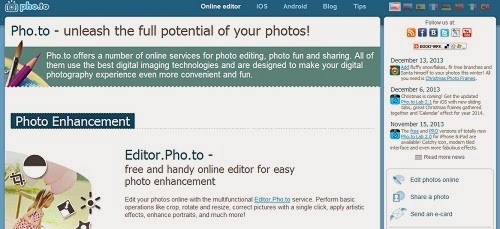
Creative Image Ideas: Pho.to
Pho.to has my everlasting gratitude for the celebrity photos you
can insert yourself into. I find these things hilarious.

If you ever wished you sparkled just like the vampires in Twilight, here's your chance. Add glittery effects to photos of you, your pets, your possessions, or anything that seems dull on its own. Play wit "night lights," "glitter," dappled light," "reflection," and "night and day." Pictures with high contrast turn out the best, according to their tips.

Login required? Yes

Creative Image Ideas: Glitterboo
So, as I was saying, the secret to achieving world peace is...oooh, shiny....

Okay, that's it for part 2. While I was researching, I found four more "workhorse" image manipulation sites that got added to the original post. Click here to go back and check them out.

So now that we've covered workhorse do-it-all photo editing sites and one-trick ponies, what's next? I'm so glad you asked. 

In part 3, I'll turn my attention to some of the more boring but necessary kinds of sites: one-step photo resizing, making icons, doing product placement shots, converting images to different formats, removing backgrounds, creating charts, and other stuff that used to take a crap-ton of time but can now be done in a couple clicks. 

Have you used any of these sites, or created a freakin' masterpiece? I'd love to hear about it. Here's a little something I made with LivLuvCreate for work:

Creative Image Creation: Example from LivLuvCreate

Don't let anyone tell you image marketing is boring. :)

Tuesday, February 11, 2014

Creative Image Creation Roundup, Part 1: The Workhorses

This is how I feel when I try to make art.
3/2/14 update: scroll down to the bottom of the post to see four sites added to the list!

I suck at art projects. I don't understand typography. I don't understand placement. I'm okay with color, but really, everything I know comes from a MAC counter. But in today's oh-so-visual world, we indie writers have to produce a staggering quantity of visual products for social media, our blogs, our websites, and what have you. This can be extremely stressful if, like me, you have the aforementioned defect of sucking at art.

Well, I've been trying to fix that and I figured some of you might be, too. I've been compiling a mile-long list of the image creation and manipulation programs I've found in Evernote. Suddenly, I realized...I shouldn't bogart the helpful information. So this is me...not bogarting the helpful information.  

Note the first: I didn't even look at any apps that are only for phones. I don't have a smartphone and never will, so anything I do has to be done on a desktop.

Note the second: These aren't sources for images...these are where you go after you already have those images. I've got an image source post in the works, but for now, just have fun with these. 

Part 1: The Workhorses

This post is about the programs that do it all: basic editing, adding text, adding effects, adding filters, and adding frames. Basically, they make it easy to look like you don't suck at art.


1. PicMonkey
My favorite. I honestly don't know what I'd do without this program. It's easy, fun, and I love the fact that no login is required. More companies should make it this easy to use their service. You can make collages, including Facebook covers. You can tweak profile photos. You can add lip gloss to your selfies. You can zombie-fy yourself. You can make nifty title cards for videos. There's not much you can't do with a little exploration here. 


Image Creation Ideas: PicMonkey
PicMonkey is my favorite image editing site of all time.
Not that I'm biased or anything.


Good: Browser-based; no download required
Good: Free (some effects are behind a paywall; however, I've done fine without them so far. I want them, but I've done fine w/out them)
Good: No signup, login, or email registration required
Good: Easy to use
Good: Can download straight to desktop; social sharing not mandatory
Good: No watermarking or branding on your finished product
Good: Best mix between ease of use + features offered

Good: They name their three image quality levels after actors who have played James Bond

Bad: There is no way (that I know of) to group or ungroup overlays without merging them all down to the background image. You have to know what you're doing so you can merge each overlay as you get it right. If you only want to merge your last overlay, you're hosed.
Bad: There is no way to curve words a la Word Art or Adobe Photoshop/Illustrator. I tried to do this manually, almost went blind, and still had crooked letters.


2. Pixlr 
Pixlr.com's "Editor" is close to a full-on Photoshop replacement. However, before I knew this existed, I taught myself to use GIMP, which is why I'm only talking about Pixlr Express and Pixlr-o-Matic here. They're the most comparable to the idiot-proof art solutions I'm listing here. 


The Express features are your basics: filter, crop, recolor, etc. O-Matic offers a fast way to slap a filter and a frame on an image. O-Matic gives you sample images to get started with, which I like. Express does not. I can't really figure out the difference between Express and O-Matic.

My one gripe here is that you can't always tell what their icons do, and THEY DO NOT HAVE HOVER TAGS. For the love of all that is holy, when I hover over a function, something should pop up to tell me what it is.

O-Matic is a little confusing to first-timers. After you choose a photo, you select a filter. You're shown 25 default filters, but you can also access 13 Creative filters, 11 Soft filters, 9 Subtle filters, 7 Too Old filters, 20 Unicolor filters, and 15 Vintage filters. Who has time to go through all these? Not me, but if you've got time on your hands, go for it. Second, select an overlay (bokeh, burn, etc.). Third, select a frame. Download to your desktop, and you're done.
Image Creation Ideas: Pixlr.com
Pixlr features beautiful design, but it may take you
a time or two to get the hang of it.


Good: Available as a download, on FB, as a Chrome web app, or for your smartphone
Good: Free, no paywall!
Good: No signup, login, or email registration required
Good: Can download straight to desktop; social sharing not mandatory
Good: No watermarking or branding on your finished product
Good: Easy way to make images look old or vintage


Bad: Not quite as intuitive as, say, PicMonkey.
Bad: Time consuming to go through all filters. Almost too many options here.
Bad: Can't tell difference between two of their products


3. BeFunky
It's a lot like PicMonkey. You can edit a single photo or create a collage. You don't have to register, but if you do, you can subscribe to streams for inspiration. Streams include big-picture concepts like "love," "travel," "LOL," etc.


It's organized a lot like PicMonkey, too, with a left-hand vertical nav bar. They make it easy to make a Facebook cover, which is nice. While you're in the "Essentials" menu, the bottom choice there is "Facebook cover," where the selector appears over your photo so you can size it just right.

I'll admit: the effects are bananas. There's a lot to pick from, which is both good (choices!) and bad (it's overwhelming and insanity-causing among perfectionist art-disabled neurotics like me). There are a crapload of filter categories, and often a crap-ton of choices within each subcategory. When you pick a filter, you can tweak things like highlights, shadows, and effect amount with an easy-to-use slider bar. Tintype is freaking awesome. Line Artopia is fun to play around with. 

You can add frames (Grunge Frames and Filmstrip kick ass), along with text, overlays, and textures. I could take a couple days off work just to play with all the good stuff they have here.


I haven't used this one much, mostly because the choices are overwhelming. But I get the feeling that you could really fine-tune some images here and get way closer to the look you want than in PicMonkey. You can save or print your image when you're done.
Image Creation Ideas: Be Funky
The highlights of BeFunky include "grunge" and "fiilmstrip" frames.

Good: Browser-based; no download required
Good: Free, no paywall
Good: No need to register, but you can if you want
Good: Overwhelming choice of filters, textures
Good: Can download straight to desktop; social sharing not mandatory
Good: No watermarking or branding on your finished product


Bad: Annoying ads on top
Bad: Almost-overwhelming choice of filters and textures

4. Canva
Design the ever-loving hell out of a flyer, Facebook fan page cover, sheet of paper, or social media post. You have to get on the waiting list (I got my creds in a day or two) to get an invitation to Beta. It's a little (okay, a lot) overwhelming just because of the sheer variety of what you can do. It seems very handy for creating a logo or crest. 


Basically, it's a way to add flat graphics (all the rage in the web design world) to a background you upload or one of their templates. It's super-easy to make a hipster-style logo or Facebook cover, in other words. All those gourmet hot dog bun companies, founded in Brooklyn in the 1980s? They probably made their logos here.
Image Creation Ideas: Canva
Your hipster logo is just minutes away.
(The Sarcasm Factory: Est. 1977)


Good: Browser-based; no download required
Good: They offer 5 tutorials that help you get started
Good: Overwhelming choice of layouts and text
Good: Nothing's behind a paywall
Good: Can download straight to desktop; social sharing not mandatory
Good: No watermarking or branding on your finished product


Bad: Must log in/register
Bad: Almost overwhelming to choose a layout or text
Bad: Some layouts don't let you add your own background image. If it starts with flat color, it stays with flat color.

5. Ribbet
Very similar to PicMonkey and BeFunky. Upload a photo and then crop, recolor, add filters, shapes, and text to it. It's also available as a browser add-on, so you can have these tools available to you anywhere you go in Chrome. Another interesting feature here is that they're teamed with Zazzle to create customizable designs on salable products. It's probably not the road to early retirement, but if you have a knack for this kind of stuff, it could be fun.


The basics are on your left (crop, rotate, recolor, sharpen). The goodies are along the top of your workspace: effects and filters, stickers, frames, and more. Stickers are just what they sound like: digital stickers, cartoon-like or icon-like add-ons you can superimpose on your photo. What's cool here is they give you an idea of what each filter will do; you see the same frog image revamped with the filter. Cairo's is funny (the frog is wearing a pharaoh's headpiece). Night Vision is kind of cool. So is Neon.

They also have a "Sandbox" with effects designed by people who don't work for them. Most of them are way out there and I'd never use them, but hey, they're there. You can also make a collage instead of working
on just one photo, if you like.

Image Creation Ideas: Ribbet
The big ads are kind of a drag, but I understand. It's hard out here for a pimp.


Good: Browser-based; no download required
Good: Free (some effects are behind a paywall)
Good: No signup, login, or email registration required
Good: Wide range of filters to choose from
Good: Can download straight to desktop; social sharing not mandatory
Good: No watermarking or branding on your finished product


Bad: Overall cheesy feel
Bad: Ads are distracting

6. Photovisi
This is a photo collage tool. It's not really meant for sprucing up a single image the way the other sites are. That being said, you can make kick-ass imagery for a blog post that compares multiple items, or advertises all of your books, for example.

Image Creation Ideas: Photovisi
The samples are gorgeous...great for stitching together
your book covers for a FB background.


Good: Browser-based; no download required
Good: Free, no paywall
Good: Gallery of samples so you can get ideas
Good: Can download straight to desktop; social sharing not mandatory
Good: No watermarking or branding on your finished product


Bad: Login required

7. iPiccy
Overall, this is a lot like most of the other tools. You can add effects, text, textures, do touch-ups, and more. You have several options for choosing a photo: upload, take a shot from your webcam, grab it from Flickr, or from a URL. You can paint, make a collage, or blend photos together.


There are fancy-pants tools like clone, curves, levels, and liquify. This is a bit too advanced for your average art dumb-ass like me, so I stick with the basics. In my life, when things get liquified, something really bad has just happened that probably requires Lysol.

As for filters, the usual suspects are here: lomo, polaroid, focal black & white, etc.  Depending on your project, they have a few filters are are super cool: Snow, Scanlines, and a kick-ass old west Wanted poster. That alone is worth visiting the site for. You enter the name of who's wanted, the reward amount, and bingo...your ex is now wanted dead or alive. You're welcome.

If you click "textures," you can overlay a grunge texture on your image. I love grunge textures. Yes, it's hipster of me, but I can't help it. Sometimes you just need a little grunge.
Image Creation Ideas: iPiccy
More grunge goodness here at iPiccy in the texture selections. 


Good: Browser-based; no download required
Good: Free, no paywall
Good: No signup, login, or email registration required
Good: Can download straight to desktop; social sharing not mandatory
Good: No watermarking or branding on your finished product
Good: Create your own Wanted poster
Good: Good font selection


Bad: Not quite as intuitive (Click on the stacked paper icon to add text? Wha?)
Bad: You might have to say "iPiccy" out loud when someone asks you how you made that image.

Okay! That's it for my roundup of workhorses. I hope you have fun playing around with these.

Next week, I'll continue this theme with some "one-trick ponies": sites that are less versatile, but can still be the right tool for the job. Stay tuned.


Mom, I Just Need to Focus on My Art Right Now

UPDATE

I found a couple more workhorse sites while researching and writing the second post in this series, Creative Image Creation Roundup, Part 2: The One-Trick Ponies. Here they are, with a brief summary:

8. Dr. Pic 
This one reminds me a lot of Ribbet, visually speaking. Here, you can resize, crop, rotate, add text, sharpen, etc. Choose your format (JPG, PNG, etc.), and save to disk or web. 

Image Creation Ideas: Dr. Pic
Easy-to-interpret icons on the left tell you what features are available.


This one is yet another entry in the "free photo editing" site field, but it's a hell of a lot more robust than many other entries (plus, they have tutorials!). Unfortunately, the options look a little overwhelming, so if you're in a hurry, this probably isn't the site for you. Given a few minutes to play, there are a lot of interesting options here. Hover over "Draw" and you'll see options like "Motivational Poster," "Stained Glass," "Twitter Mosaic," and "Glass Tile," among others. The "Effects" menu has just as many cool-looking choices. Choose "Dollar Bill" to put your picture in the center of a dollar bill, use the "Lego" effect to make your photo look like it's composed of Lego blocks, or make your photo look like it's underwater with the "Water" effect. There is a lot to explore here, and given the time, you could create some pretty cool homemade marketing materials. 

Image Creation Ideas: LunaPic
A generous supply of effects, if you've got the time and patience to sort through them.


10. Fotor
This one lets you edit a photo, make a collage, or make cards. Once you upload a photo, you can crop, rotate, adjust tone/color, etc, play with curves, resize, add text, effects, a frame, clip art, or save/print/share. You can also run your photo through "HDR" to make it look super HD. They give you a "compare" feature, which puts your "before" and "after" side by side. I didn't notice a difference in the rose photo I tested. 

Image Creation Ideas: Fotor
Is that gold glitter in their background? Hmm, I wonder who their target audience is...


11. Pixenate 
This one offers the standard array of photo-editing tools: crop, resize, flip, rotate, improve color balance, smooth, brighten, straighten horizon, remove red eye, white teeth, adjust color/hue, and drawing over the photo. Your options for your finished product include saving to disk or uploading to Flickr.

Image Creation Ideas: Pixenate
Easy fixes for red eye and bad teeth, plus straightening photos with a crooked horizon.


Monday, February 3, 2014

The Romanov Legacy: Free on Kindle

The Romanov Legacy by Jenni Wiltz
This is a public service announcement.

All this week, my four-star thriller, The Romanov Legacy, is free for Kindle. Yes, you read that right. Absolutely free.

Included features:

  • Espionage
  • Betrayal
  • Murder
  • Treasure
  • History
  • Romance
  • Car chases
  • Shootouts
  • Secret codes
  • Hidden letters
  • Death squads
  • Breaking & entering
  • Hoaxes
  • Conspiracy theories
But wait, there's more! Buy now, and you'll also get: 
  • A schizophrenic heroine
  • A dog
  • A spy
  • A traitor 
  • A mom
  • A son
  • A boy
  • A spymaster
  • A prime minister
  • Two grand duchesses
To take advantage of this once-in-a-lifetime offer, click here. 


We now rejoin the previously scheduled program, already in progress.

Sunday, January 19, 2014

Demons, Funnels, and an Empty Checking Account: Why I Decided to Sell Short Fiction

Croatoa: A short story of the Lost Colony of Roanoke by Jenni Wiltz
In 2010, I had an idea for a short story about the lost colony of Roanoke. My first love is historical fiction and I've always been tormented by the idea of unsolved mysteries, so it seemed like a natural fit for me. Still, my writer's brain wanted more. It wanted to put a supernatural twist on the story. What better way to explain the strange disappearance of the colonists than by introducing something creepy and otherworldly? Namely, a demon named Croatoa. I know, I know...there are actual scientific theories about what happened to the colonists. But that's not nearly as much fun as a long-fingered black-haired demon.  

But I digress. It was a cold December and I was about to finish my first semester of grad school. It was time to write the final story for my first graduate-level creative writing class. I'd already turned in one historical fiction story, and one story about a talking dog who was really the devil. To reveal my amazing depth and breadth as a writer, logic dictated that I avoid (a) history and (b) the supernatural.

But since when have I done anything the way I'm supposed to?

I wrote the Roanoke story anyway.  Whether it risked my grade or not, it was the story I wanted to write. That's how I roll. 

I wrote it from the point of view of Eleanor Dare, the mother of the first English baby born in the New World. I wrote about the last days of the colony, when hunger and cold and starvation and drought and attacks by Native Americans had taken their toll. I wrote about a demon named Croatoa, who offered Eleanor Dare a terrifying bargain. I wrote about Manteo, the Croatoan man who had already been to England twice by the time the last, doomed Roanoke colonization party arrived. And I turned it in for my final: 20 pages of brutal, bloody, tragic prose.  I don't know what my grade on that particular story ended up being, since the professor said he would read our finals over a fire and burn them before assigning our final grades. But my grade in the class was an A, so I'm guessing it didn't suck too hard.

Leopard Writer Meme: Characters Fall n Love, Kill One of Them
This is pretty much how I write
 most of my non-literary short stories.
Being in grad school led to a burst of creativity for the next 16 months that resulted in me having quite a few short stories, mostly written for creative writing classes. I submitted almost all of them to journals and anthologies. Quite a few of them actually made it in and have been published. As is the case with most journals and anthologies, they requested only first North American rights, which meant that once the story had been published, all rights reverted to me.

Until recently, I thought of my short stories as a means to an end: a way to get better at writing. A way to rack up a few publishing credits for this here "Awards & Publications" page. A way to earn backlinks for this blog. But I never thought of them as anything else.

Then I read a blog post on Anne R. Allen's blog.  Writers, if you're not reading her blog, you're missing out. I only discovered it recently, but every post is chock-full of helpful and interesting information. The post I read was called, "Why You Should be Writing Short Fiction." In it, Anne writes, "What--short stories? Aren't they just for writing classes?" She had my attention right away, since that's what I'd always thought. She said she knew of a bestselling writer who put a bunch of her older short stories up for sale on Amazon (under non-famous name, of course) and ended up making $500 a month. People found them, bought them, and liked them. 

Hmm, I thought. I have folders of short stories, all just sitting there.

But I still didn't do anything about it. I was working on marketing my books and getting my website up and running, and I didn't want to think about it yet.

Meme: Learn all the Marketing!
Then, Sean Platt and Johnny B. Truant released Write, Publish, Repeat. Their advice is to create a marketing funnel, with short stories, novellas, and books in tiered pricing layers that draw browsers in and convert casual readers into repeat buyers and (hopefully) fans.

Hmm, I thought. I don't have shit for a funnel.

That's when I started thinking of ways to use my short stories as part of my marketing funnel. The book I want to write next is historical fiction (both of them, actually). I have several historical fiction short stories, including Croatoa. Why not put out some of the short stories and try to use them to generate interest in my historical fiction? 

So here's what I did:

  1. Dug out my old manuscript.
  2. Polished it up. Added some stuff. Took a few awkward lines away.
  3. Made a cover. (Deepest apologies to my fantastic cover artist, but with a dead laptop and an empty propane tank, money is allergic to me right now.)
  4. Popped the completed manuscript into my eBook template.
  5. Added two bonus features to the end of the story: a historical note on Manteo, and a detailed timeline of the Roanoke Colony. I wanted to make sure the reader had a bit more than just the story, so I used the idea of a DVD's special features and came up with the timeline/historical note idea.
  6. Added a brief excerpt from my vampire book at the very end, with the cover art and a buy link. The idea here is that someone interested in a historical fiction story with a hint of the supernatural might also really like my vampire book, which also hits both of these genre's high notes. 
  7. Priced it at .99c. My books are all $2.99, and since this story is much shorter, the price needs to reflect that. Maybe when I have more items up for sale, I can make one of my funnel items permafree, but for now, I chose the entry-level price point of .99c.
  8. Published through Amazon KDP and Smashwords. Since I don't plan on doing a ton of promotion for the story, I didn't make it exclusive to KDP. I want the max amount of exposure for the minimum amount of effort, which means more venues = more eyeballs. 

So this is now the beginning of a grand experiment in which I see if I can replicate other authors' success selling short fiction. I haven't publicized the release much, since I had an interview that went live at the same time and I can only stand so much of myself. In general, my books make very little money and this story likely will, too. As of now, it's sold one copy through Smashwords and made me .73c. But that's .73c I didn't have yesterday, so that's cool with me.

Meme: Become a writer, they said. It will be fun, they said.
I don't think I'll be one of the lucky few making $500 a month off of it, but I also know I have a dozen more than can follow. It's the production time that's going to slow me down. I am writing two books right now, and don't have much time left over to market the older books plus edit, format, produce, and publish a buttload of short stories. But I'm going to try because, well, Protestant work ethic bequeathed to me by my Swedish and Scottish ancestors just will not quit. Why watch TV at night when you could work on 800 projects all at once?

That's one thing about being a one-woman indie author show. You have to love it in order to live it. So here I am, loving it and living it, and wanting to help you do the same. I'll post updates here as needed to let you know how my short story experiment goes.

If you want to check out Croatoa, you can get it from Amazon or Smashwords.

To learn more about how I researched and wrote the story itself, check out this post on my website: